
Vector layers (geopandas)#
Last updated: 2026-03-28 21:56:37
Introduction#
In the previous chapter, we worked with individual geometries using the shapely package (Geometries (shapely)). In GIS paractice, however, we usually work with vector layers, rather than individual geometries. Vector layers can be thought of as:
a collection of (one or more) geometries,
associated with (zero or more) non-spatial attributes, and
associated with a Coordinate Reference System (CRS) definition (possibly “undefined”)
In this chapter, we introduce the geopandas package for working with vector layers. First, we are going to see how a vector layer can be created from scratch (see Creating a GeoDataFrame), based on shapely geometries, to understand the relation between shapely and geopandas data structures, namely:
GeoSeries—A geometry column, i.e., a collection ofshapelygeometries with a CRS definitionGeoDataFrame—A vector layer, i.e., a table containing aGeoSeries
Then, we go on to cover some of the basic operations and workflows with vector layers using the geopandas package:
Reading vector layers—Importing a vector layer from a file, such as a Shapefile
Plotting (geopandas)—Plotting vector layers
Filtering by attributes—Selecting features by attribute
Table to point layer—Creating a point layer from a table
Points to line (geopandas)—Converting a point layer to a line layer
Writing GeoDataFrame to file—Writing a vector layer to file
In the next chapter (Geometric operations), we are going to cover spatial operations with geopandas, such as calculating new geometries (buffers, etc.) and spatial join.
What is geopandas?#
geopandas, as the name suggests, is an extension of pandas that enables working with spatial (geographic) data, specifically with vector layers. To facilitate the representation of spatial data, geopandas defines two data structures, which are extensions of the analogous data structures from pandas for non-spatial data:
GeoSeries—An extension of aSeries(see Creating a Series) for storing a sequence of geometries and a Coordinate Reference System (CRS) definition, whereas each geometry is ashapelyobject (see Geometries (shapely))GeoDataFrame—An extension of aDataFrame(see Creating a DataFrame), where one of the columns is aGeoSeries
As will be demostrated in a moment (see Creating a GeoDataFrame), a GeoDataFrame, representing a vector layer, is thus a combination (Fig. 47) of:
A
GeoSeries, which holds the geometries in a special “geometry” columnZero or more
Series, which represent the non-spatial attributes
Since geopandas is based on pandas, many of the DataFrame workflows and operators we learned about earlier (see Tables (pandas) and Table reshaping and joins) work exactly the same way with a GeoDataFrame. This is especially true for operations that involve just the non-spatial properties, such as filtering by attributes (see Filtering by attributes).
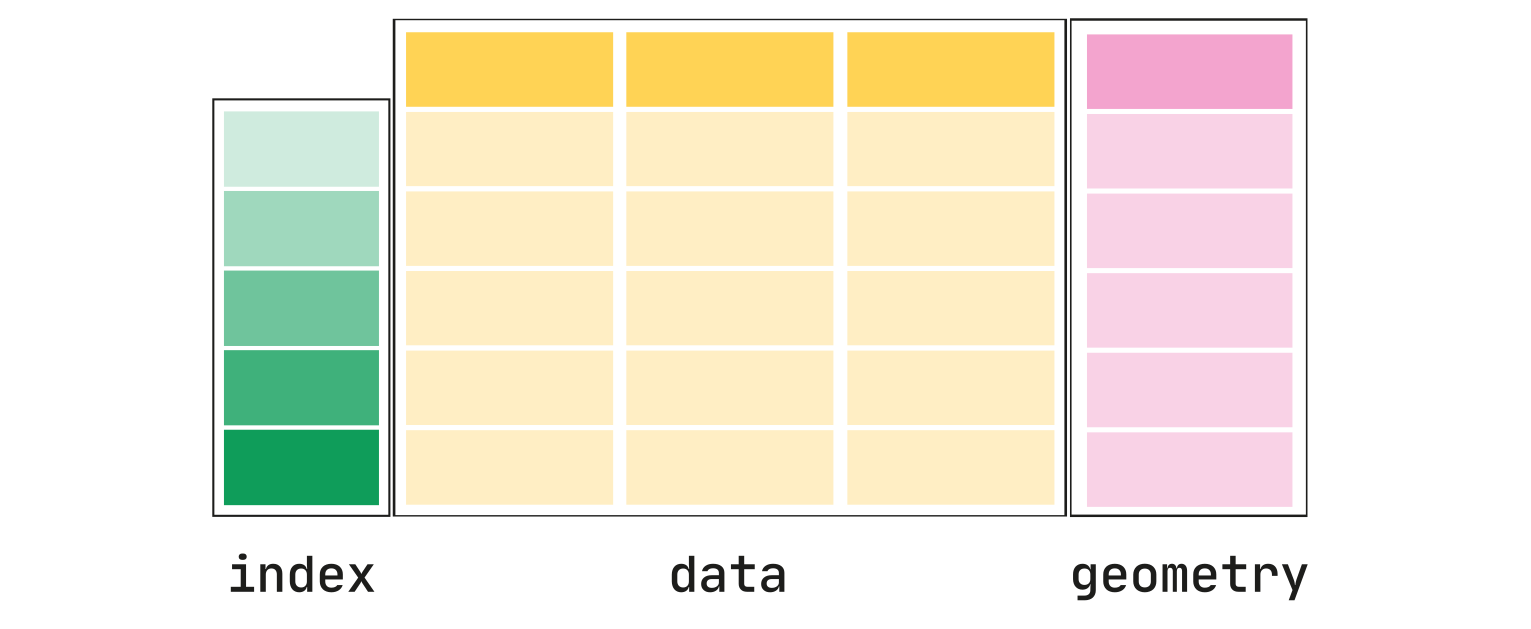
Fig. 47 GeoDataFrame structure (source: https://geopandas.org/getting_started/introduction.html)#
The geopandas package depends on several other Python packages, most importantly:
numpypandasshapely—Interface to GEOS (see Geometries (shapely))
To put it another way, geopandas may be considered a “wrapper” of pyogrio, shapely, and pyproj, giving access to all (or most) of their functionality through pandas-based data structures and simpler-to-use methods. Compared to other packages, geopandas may be considered a high-level approach for working with vector layers in Python. A lower-level approach is provided through the fiona package, for example. The osgeo package provides (through its ogr sub-package) another, more low-level, approach for vector layer access.
Since geopandas is simpler to learn and work with than its alternatives, it is the recommended approach for the purposes in this book. For instance, using fiona and osgeo we typically have to process vector features one-by-one inside a for loop, while in geopandas the entire layer is being ‘read’ and processed at once. Nevertheless, in some situations it is necessary to resort to lower-level approaches. For example, processing features one-by-one is essential when the layer is too big to fit in memory.
Vector layer from scratch#
Creating a GeoSeries#
Before starting to work with geopandas, we have to load it. We also load pandas and shapely, which we are already familiar with, since they are needed for some of the examples:
import pandas as pd
import shapely
import geopandas as gpd
As a first step to learn about geopandas, we are going to create a geometry column (GeoSeries), and then a vector layer (GeoDataFrame) (see Creating a GeoDataFrame) from sratch. This will help us get a better understanding of the structure of a GeoDataFrame (Fig. 47).
Let’s start with the geometry column, i.e., a GeoSeries. The geometric component of our layer is going to be a sequence of two 'Polygon' geometries, hereby named pol1 and pol2 (see shapely from WKT):
pol1 = shapely.from_wkt('POLYGON ((0 0, 0 -1, 7.5 -1, 7.5 0, 0 0))')
pol2 = shapely.from_wkt('POLYGON ((0 1, 1 0, 2 0.5, 3 0, 4 0, 5 0.5, 6 -0.5, 7 -0.5, 7 1, 0 1))')
To create a GeoSeries, we can pass a list of shapely geometries to the gpd.GeoSeries function. The second (optional) argument passed to gpd.GeoSeries is a crs, specifying the Coordinate Reference System (CRS). In this case, we specify the WGS84 geographical CRS, using its EPSG code 4326 (Table 23):
s = gpd.GeoSeries([pol1, pol2], crs=4326)
s
0 POLYGON ((0 0, 0 -1, 7.5 -1, 7....
1 POLYGON ((0 1, 1 0, 2 0.5, 3 0,...
dtype: geometry
Creating a GeoDataFrame#
A GeoDataFrame can be constructed from a dict representing the columns, one of them containing the geometries, and the other(s) containing non-spatial attributes (if any). The dict values may be Series, GeoSeries, or list data structure. First, let us create the dictionary:
d = {'name': ['a', 'b'], 'geometry': s}
d
{'name': ['a', 'b'],
'geometry': 0 POLYGON ((0 0, 0 -1, 7.5 -1, 7....
1 POLYGON ((0 1, 1 0, 2 0.5, 3 0,...
dtype: geometry}
In this particular case, we have:
the (mandatory) geometry column, conventionally named
'geometry', specified using aGeoSeries(see Creating a GeoSeries), andone non-spatial attribute, named
'name', specified using alist
Now, we can convert the dict to a GeoDataFrame, using the gpd.GeoDataFrame function:
gdf = gpd.GeoDataFrame(d)
gdf
| name | geometry | |
|---|---|---|
| 0 | a | POLYGON ((0 0, 0 -1, 7.5 -1, 7.... |
| 1 | b | POLYGON ((0 1, 1 0, 2 0.5, 3 0,... |
or in a single step:
gdf = gpd.GeoDataFrame({'name': ['a', 'b'], 'geometry': s})
gdf
| name | geometry | |
|---|---|---|
| 0 | a | POLYGON ((0 0, 0 -1, 7.5 -1, 7.... |
| 1 | b | POLYGON ((0 1, 1 0, 2 0.5, 3 0,... |
We can also use a list of geometries instead of a GeoSeries, in which case the crs can be specified inside gpd.GeoDataFrame:
gdf = gpd.GeoDataFrame({'name': ['a', 'b'], 'geometry': [pol1, pol2]}, crs=4326)
gdf
| name | geometry | |
|---|---|---|
| 0 | a | POLYGON ((0 0, 0 -1, 7.5 -1, 7.... |
| 1 | b | POLYGON ((0 1, 1 0, 2 0.5, 3 0,... |
Note that, the workflow to create a GeoDataFrame is very similar to the way we created a DataFrame with the pd.DataFrame function (see Creating a DataFrame). Basically, the only difference is the presence of the geometry column.
GeoDataFrame structure#
Series columns#
Let us examine the structure of the gdf object we just created to understand the structure of a GeoDataFrame.
An individual column of a GeoDataFrame can be accessed just like a column of a DataFrame (see Selecting DataFrame columns). For example, the following expression returns the 'name' column:
gdf['name']
0 a
1 b
Name: name, dtype: str
as a Series object:
type(gdf['name'])
pandas.Series
More specifically, 'name' is a Series of type object, since it contains strings.
GeoSeries (geometry) column#
The following expression returns the 'geometry' column:
gdf['geometry']
0 POLYGON ((0 0, 0 -1, 7.5 -1, 7....
1 POLYGON ((0 1, 1 0, 2 0.5, 3 0,...
Name: geometry, dtype: geometry
However, the recommended approach to access the geometry is through the .geometry property, which refers to the geometry column regardless of its name (whether the name is 'geometry' or not):
gdf.geometry
0 POLYGON ((0 0, 0 -1, 7.5 -1, 7....
1 POLYGON ((0 1, 1 0, 2 0.5, 3 0,...
Name: geometry, dtype: geometry
As mentioned above, the geometry column is a GeoSeries object:
type(gdf.geometry)
geopandas.geoseries.GeoSeries
The 'geometry' column is what differentiates a GeoDataFrame from an ordinary DataFrame.
Note
It is possible for a GeoDataFrame to contain multiple GeoSeries columns. However, only one GeoSeries column at a time can be the “active” geometry column, meaning that it becomes accessible through the .geometry property, participates in spatial calculations, displayed when plotting the layer, etc. To make a given column “active”, we use the .set_geometry method, as in dat=dat.set_geometry('column_name'), where column_name is a name of a GeoSeries column in dat.
Individual geometries#
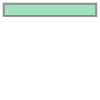
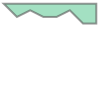
As evident from the way we constructed the object (see Creating a GeoDataFrame), each “cell” in the geometry column is an individual shapely geometry:
gdf.geometry.iloc[0]
gdf.geometry.iloc[1]
If necessary, for instance when applying shapely functions (see Points to line (geopandas)), the entire geometry column can be extracted as a list of shapely geometries using to_list (see Series to list):
gdf.geometry.to_list()
[<POLYGON ((0 0, 0 -1, 7.5 -1, 7.5 0, 0 0))>,
<POLYGON ((0 1, 1 0, 2 0.5, 3 0, 4 0, 5 0.5, 6 -0.5, 7 -0.5, 7 1, 0 1))>]
GeoDataFrame properties#
Geometry types#
The geometry types (Fig. 37) of the geometries in a GeoDataFrame or a GeoSeries can be obtained using the .geom_type property. The result is a Series of strings, with the geometry type names. For example:
s.geom_type
0 Polygon
1 Polygon
dtype: str
gdf.geom_type
0 Polygon
1 Polygon
dtype: str
The .geom_type property of geopandas thus serves the same purpose as the .geom_type property of shapely geometries (see Geometry type).
Coordinate Reference System (CRS)#
In addition to the geometries, a GeoSeries has a property named .crs, which specifies the Coordinate Regerence System (CRS) of the geometries. For example, the geometries in the gdf layer are in the geographic WGS84 CRS, as specified when creating the layer (see Creating a GeoDataFrame):
gdf.geometry.crs
<Geographic 2D CRS: EPSG:4326>
Name: WGS 84
Axis Info [ellipsoidal]:
- Lat[north]: Geodetic latitude (degree)
- Lon[east]: Geodetic longitude (degree)
Area of Use:
- name: World.
- bounds: (-180.0, -90.0, 180.0, 90.0)
Datum: World Geodetic System 1984 ensemble
- Ellipsoid: WGS 84
- Prime Meridian: Greenwich
The .crs property can also be reached from the GeoDataFrame itself:
gdf.crs
<Geographic 2D CRS: EPSG:4326>
Name: WGS 84
Axis Info [ellipsoidal]:
- Lat[north]: Geodetic latitude (degree)
- Lon[east]: Geodetic longitude (degree)
Area of Use:
- name: World.
- bounds: (-180.0, -90.0, 180.0, 90.0)
Datum: World Geodetic System 1984 ensemble
- Ellipsoid: WGS 84
- Prime Meridian: Greenwich
We are going to elaborate on CRSs and modifying them later on (see CRS and reprojection).
Bounds (geopandas)#
The .total_bounds, property of a GeoDataFrame contains the bounding box coordinates of all geometries combined, in the form of a numpy array:
gdf.total_bounds
array([ 0. , -1. , 7.5, 1. ])
For more detailed information, the .bounds property returns the bounds of each geometry, separately, in a DataFrame:
gdf.bounds
| minx | miny | maxx | maxy | |
|---|---|---|---|---|
| 0 | 0.0 | -1.0 | 7.5 | 0.0 |
| 1 | 0.0 | -0.5 | 7.0 | 1.0 |
In both cases, bounds are returned in the standard form \((x_{min}\), \(y_{min}\), \(x_{max}\), \(y_{max})\), in agreement with the .bounds property of shapely (see Bounds (shapely)).
Reading vector layers#
Usually, we read a vector layer from a file, rather than creating it from scratch (see Creating a GeoDataFrame). The gpd.read_file function can read vector layer files in any of the common formats, such as:
Shapefile (
.shp)GeoJSON (
.geojson)GeoPackage (
.gpkg)File Geodatabase (
.gdb)
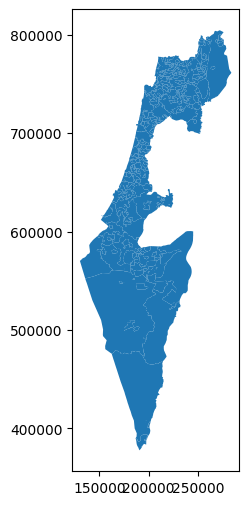
For example, the following expression reads a Shapefile named 'muni_il.shp' into a GeoDataFrame named towns. This is a polygonal layer of towns in Israel. The additional encoding='utf-8' argument makes the Hebrew text correctly interpreted:
towns = gpd.read_file('data/muni_il.shp', encoding='utf-8')
towns
| Muni_Heb | Muni_Eng | Sug_Muni | CR_PNIM | CR_LAMAS | ... | FIRST_Nafa | LAST_Nafa2 | Shape_Leng | Shape_Area | geometry | |
|---|---|---|---|---|---|---|---|---|---|---|---|
| 0 | שפיר | Shafir | מועצה אזורית | 5534 | NaN | ... | אשקלון | NaN | 48125.964322 | 2.721176e+07 | POLYGON Z ((177281.694 610056.5... |
| 1 | דימונה | Dimona | עירייה | 2200 | 2200 | ... | באר שבע | NaN | 1102.492262 | 7.708050e+04 | POLYGON Z ((205753.745 560693.6... |
| 2 | דימונה | Dimona | עירייה | 2200 | 2200 | ... | באר שבע | NaN | 7071.568894 | 1.043253e+06 | POLYGON Z ((207740.171 563476.5... |
| 3 | זבולון | Zevulun | מועצה אזורית | 5512 | NaN | ... | חיפה | NaN | 1107.564213 | 4.769053e+04 | POLYGON Z ((209445.229 740507.2... |
| 4 | מגידו | Megido | מועצה אזורית | 5513 | NaN | ... | יזרעאל | NaN | 1076.261429 | 2.144091e+04 | POLYGON Z ((206769.626 727131.7... |
| ... | ... | ... | ... | ... | ... | ... | ... | ... | ... | ... | ... |
| 406 | ללא שיפוט - אזור מעיליא | No Jurisdiction - Mi'ilya Area | ללא שיפוט | 9901 | NaN | ... | NaN | NaN | 2617.936245 | 2.001376e+05 | POLYGON Z ((225369.655 770523.6... |
| 407 | זבולון | Zevulun | מועצה אזורית | 5512 | NaN | ... | חיפה | NaN | 2209.128245 | 2.246316e+05 | POLYGON Z ((207596.214 746263.0... |
| 408 | זבולון | Zevulun | מועצה אזורית | 5512 | NaN | ... | חיפה | NaN | 5507.014575 | 1.141930e+06 | POLYGON Z ((208622.688 746540.1... |
| 409 | רמת השרון | Ramat Hasharon | עירייה | 2650 | 2650 | ... | תל אביב - יפו | NaN | 937.968193 | 4.076764e+04 | POLYGON Z ((183576.756 673627.0... |
| 410 | צור הדסה | Tsur Hadasa | מועצה מקומית | 1113 | 1113 | ... | תל אביב - יפו | NaN | 11292.949932 | 3.961142e+06 | POLYGON Z ((209871.005 625364.9... |
411 rows × 14 columns
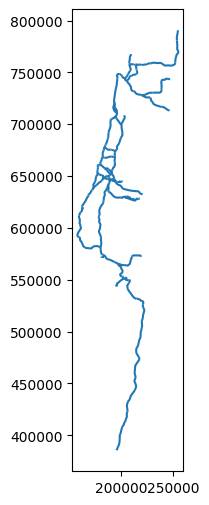
Let’s read another layer, 'RAIL_STRATEGIC.shp', into a GeoDataFrame named rail. This is a line layer of railway lines in Israel:
rail = gpd.read_file('data/RAIL_STRATEGIC.shp')
rail
| UPGRADE | SHAPE_LENG | SHAPE_Le_1 | SEGMENT | ISACTIVE | UPGRAD | geometry | |
|---|---|---|---|---|---|---|---|
| 0 | שדרוג 2040 | 14489.400742 | 12379.715332 | כפר יהושע - נשר_1 | פעיל | שדרוג בין 2030 ל-2040 | LINESTRING (205530.083 741562.9... |
| 1 | שדרוג 2030 | 2159.344166 | 2274.111800 | באר יעקב-ראשונים_2 | פעיל | שדרוג עד 2030 | LINESTRING (181507.598 650706.1... |
| 2 | שדרוג 2040 | 4942.306156 | 4942.306156 | נתבג - נען_3 | לא פעיל | שדרוג בין 2030 ל-2040 | LINESTRING (189180.643 645433.4... |
| 3 | שדרוג 2040 | 2829.892202 | 2793.337699 | לב המפרץ מזרח - נשר_4 | פעיל | שדרוג בין 2030 ל-2040 | LINESTRING (203482.789 744181.5... |
| 4 | שדרוג 2040 | 1976.490872 | 1960.170882 | קרית גת - להבים_5 | פעיל | שדרוג בין 2030 ל-2040 | LINESTRING (178574.101 609392.9... |
| ... | ... | ... | ... | ... | ... | ... | ... |
| 212 | חדש 2030 | 2174.401983 | 2174.401983 | ראש העין צפון - כפר סבא צפון_ | לא פעיל | פתיחה עד 2030 | LINESTRING (195887.59 675861.96... |
| 213 | חדש 2030 | 0.000000 | 974.116931 | רמלה דרום-ראשונים_218 | לא פעיל | פתיחה עד 2030 | LINESTRING (183225.361 648648.2... |
| 214 | שדרוג 2030 | 3248.159569 | 1603.616014 | השמונה - בית המכס_220 | פעיל | שדרוג עד 2030 | LINESTRING (200874.999 746209.3... |
| 215 | שדרוג 2030 | 2611.879099 | 166.180958 | לב המפרץ - בית המכס_221 | פעיל | שדרוג עד 2030 | LINESTRING (203769.786 744358.6... |
| 216 | שדרוג 2030 | 1302.971893 | 1284.983680 | 224_לוד מרכז - נתבג | פעיל | שדרוג עד 2030 | LINESTRING (190553.481 654170.3... |
217 rows × 7 columns
Note
Note that a Shapefile consists of several files, such as '.shp', '.shx', '.dbf' and '.prj', even though we specify just one the '.shp' file path when reading a Shapefile with gpd.read_file. The same applies to writing a Shapefile (see Writing GeoDataFrame to file).
Plotting (geopandas)#
Basic plots#
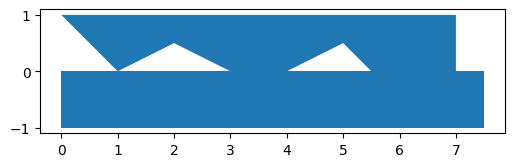
GeoSeries and GeoDataFrame objects have a .plot method, which can be used to visually examine the data we are working with. For example:
gdf.plot();
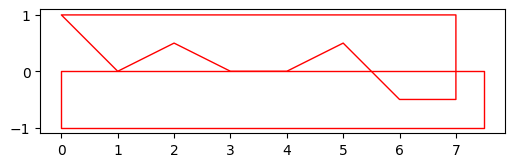
We can use the color and edgecolor parameters to specify the fill color and border color, respectively:
gdf.plot(color='none', edgecolor='red');
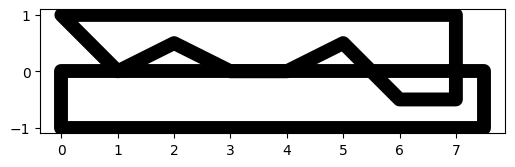
Another useful property is linewidth, to specify line width:
gdf.plot(color='none', linewidth=10);
Let’s also plot the towns and rail layers to see what they look like:
towns.plot();
rail.plot();
Setting symbology#
By default, all plotted geometries share the same appearance. However, when plotting a GeoDataFrame, we can set symbology, i.e., geometry appearance corresponding to attribute values. The attribute to use for symbology is specified with the column parameter.
For example, the following expression results in a map where town fill colors correspond to the 'Machoz' attribute values:
towns.plot(column='Machoz');
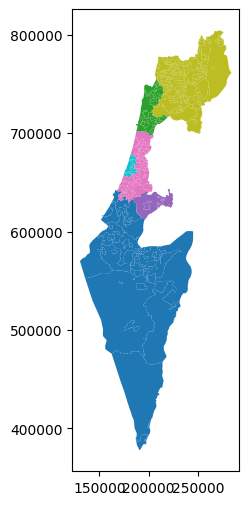
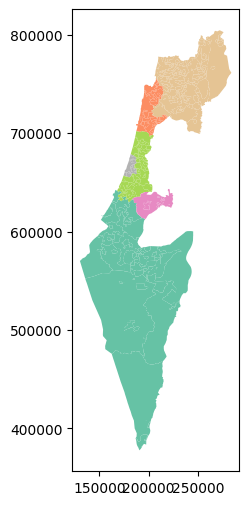
The color palette for the symbology can be changed using the cmap (“color map’) argument. Valid palette names can be found in the Choosing Colormaps in Matplotlib page of the matplotlib documentation. For example, 'Set2' is one of the “Qualitative colormaps”, which is appropriate for categorical variables:
towns.plot(column='Machoz', cmap='Set2');
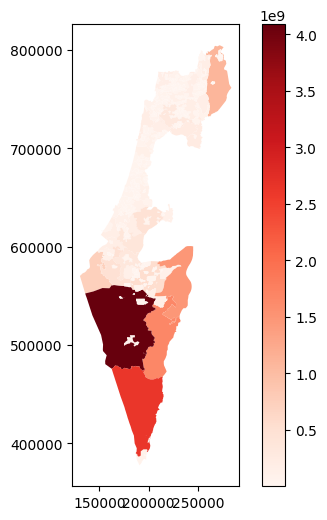
As another example, the following expression sets a symbology corresponding to the continuous 'Shape_Area' (polygon area, in \(m^2\)) columns. The argument legend=True adds a legend:
towns.plot(column='Shape_Area', cmap='Reds', legend=True);
Interactive maps#
geopandas also provides the .explore method, which facilitates interactive exploration of the vector layers we are working with. The .explore method takes many of the same arguments as .plot (such as column and cmap), but also some specific ones (such as style_kwds). See the documentation for details.
For example, the following expression creates an interactive map displaying the rail layer, colored according to status (active or not). Note that hovering over a feature with the mouse shows a tooltip with the attribute values (similarly to “identify” tools in GIS software).
rail.explore(
column='ISACTIVE',
cmap='RdYlBu',
style_kwds={'weight':8, 'opacity':0.8}
)
Note
There are several Python packages for creating interactive maps displaying spatial data, either inside a Jupyter notebook or exporting to an HTML document. Most notably, these include folium, ipyleaflet, leafmap, and bokeh. All but the last one are based on the Leaflet web-mapping JavaScript package. The .explore method of geopandas, in fact, uses the folium package and requires it to be installed.
Plotting more than one layer#
It is is often helpful to display several layers together in the same plot, one on top of the other. That way, we can see the orientation and alignment of several layers at once.
To display two or more layers in the same geopandas plot, we need to do things a little differently than shown above (see Basic plots):
Assign a “base” plot, to a variable, such as
baseDisplay any additional layer(s) on top of the base plot using its
.plotmethod combined withax=base
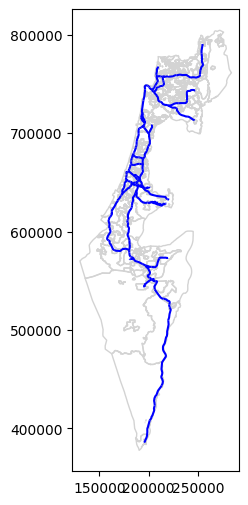
For example, here is how we can plot both towns and rail, one on top of the other. Note that we use color='none' for transparent fill of the polygons:
base = towns.plot(color='none', edgecolor='lightgrey')
rail.plot(ax=base, color='blue');
Note
More information on plotting geopandas layers can be found in the Mapping and plotting tools tutorial in the official package documentation.
Selecting GeoDataFrame columns#
We can subset columns in a GeoDataFrame the same way as in a DataFrame, using the [[ operator (see Selecting DataFrame columns). The only thing we need to keep in mind is that we must keep the geometry column, so that the result remains a vector layer.
For example, the following expression subsets 5 out of the 14 columns in towns:
towns = towns[['Muni_Heb', 'Muni_Eng', 'Machoz', 'Shape_Area', 'geometry']]
towns
| Muni_Heb | Muni_Eng | Machoz | Shape_Area | geometry | |
|---|---|---|---|---|---|
| 0 | שפיר | Shafir | דרום | 2.721176e+07 | POLYGON Z ((177281.694 610056.5... |
| 1 | דימונה | Dimona | דרום | 7.708050e+04 | POLYGON Z ((205753.745 560693.6... |
| 2 | דימונה | Dimona | דרום | 1.043253e+06 | POLYGON Z ((207740.171 563476.5... |
| 3 | זבולון | Zevulun | חיפה | 4.769053e+04 | POLYGON Z ((209445.229 740507.2... |
| 4 | מגידו | Megido | צפון | 2.144091e+04 | POLYGON Z ((206769.626 727131.7... |
| ... | ... | ... | ... | ... | ... |
| 406 | ללא שיפוט - אזור מעיליא | No Jurisdiction - Mi'ilya Area | צפון | 2.001376e+05 | POLYGON Z ((225369.655 770523.6... |
| 407 | זבולון | Zevulun | חיפה | 2.246316e+05 | POLYGON Z ((207596.214 746263.0... |
| 408 | זבולון | Zevulun | חיפה | 1.141930e+06 | POLYGON Z ((208622.688 746540.1... |
| 409 | רמת השרון | Ramat Hasharon | תל אביב | 4.076764e+04 | POLYGON Z ((183576.756 673627.0... |
| 410 | צור הדסה | Tsur Hadasa | ירושלים | 3.961142e+06 | POLYGON Z ((209871.005 625364.9... |
411 rows × 5 columns
And here we subset three of the columns in rail:
rail = rail[['SEGMENT', 'ISACTIVE', 'geometry']]
rail
| SEGMENT | ISACTIVE | geometry | |
|---|---|---|---|
| 0 | כפר יהושע - נשר_1 | פעיל | LINESTRING (205530.083 741562.9... |
| 1 | באר יעקב-ראשונים_2 | פעיל | LINESTRING (181507.598 650706.1... |
| 2 | נתבג - נען_3 | לא פעיל | LINESTRING (189180.643 645433.4... |
| 3 | לב המפרץ מזרח - נשר_4 | פעיל | LINESTRING (203482.789 744181.5... |
| 4 | קרית גת - להבים_5 | פעיל | LINESTRING (178574.101 609392.9... |
| ... | ... | ... | ... |
| 212 | ראש העין צפון - כפר סבא צפון_ | לא פעיל | LINESTRING (195887.59 675861.96... |
| 213 | רמלה דרום-ראשונים_218 | לא פעיל | LINESTRING (183225.361 648648.2... |
| 214 | השמונה - בית המכס_220 | פעיל | LINESTRING (200874.999 746209.3... |
| 215 | לב המפרץ - בית המכס_221 | פעיל | LINESTRING (203769.786 744358.6... |
| 216 | 224_לוד מרכז - נתבג | פעיל | LINESTRING (190553.481 654170.3... |
217 rows × 3 columns
Filtering by attributes#
We can subset the rows (i.e., features) of a GeoDataFrame using a corresponding boolean Series, the same way we subset rows of a DataFrame (see DataFrame filtering). Typically, the boolean Series is the result of applying a conditional operator on one or more columns of the same GeoDataFrame.
For example, suppose that we want to keep just the active railway segments from the rail layer, namely those segments where the value in the 'ISACTIVE' column is equal to 'פעיל' (“active”). First, we need to create a boolean series where True values reflect the rows we would like to keep. Here, we assign the boolean Series to a variable named sel:
sel = rail['ISACTIVE'] == 'פעיל'
sel
0 True
1 True
2 False
3 True
4 True
...
212 False
213 False
214 True
215 True
216 True
Name: ISACTIVE, Length: 217, dtype: bool
Second, we need to pass the series as an index to the GeoDataFrame. As a result, rail now contains only the active railway lines (161 features out of 217):
rail = rail[sel]
rail
| SEGMENT | ISACTIVE | geometry | |
|---|---|---|---|
| 0 | כפר יהושע - נשר_1 | פעיל | LINESTRING (205530.083 741562.9... |
| 1 | באר יעקב-ראשונים_2 | פעיל | LINESTRING (181507.598 650706.1... |
| 3 | לב המפרץ מזרח - נשר_4 | פעיל | LINESTRING (203482.789 744181.5... |
| 4 | קרית גת - להבים_5 | פעיל | LINESTRING (178574.101 609392.9... |
| 5 | רמלה - רמלה מזרח_6 | פעיל | LINESTRING (189266.58 647211.50... |
| ... | ... | ... | ... |
| 210 | ויתקין - חדרה_215 | פעיל | LINESTRING (190758.23 704950.04... |
| 211 | בית יהושע - נתניה ספיר_216 | פעיל | LINESTRING (187526.597 687360.3... |
| 214 | השמונה - בית המכס_220 | פעיל | LINESTRING (200874.999 746209.3... |
| 215 | לב המפרץ - בית המכס_221 | פעיל | LINESTRING (203769.786 744358.6... |
| 216 | 224_לוד מרכז - נתבג | פעיל | LINESTRING (190553.481 654170.3... |
161 rows × 3 columns
Once you are more comfortable with the subsetting syntax, you may prefer to do the operation in a single step, as follows:
rail = rail[rail['ISACTIVE'] == 'פעיל']
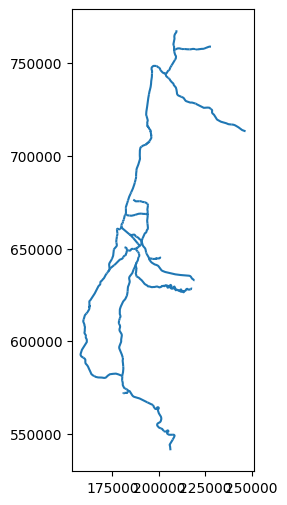
Let’s plot the filtered rail layer, to see the effect visually:
rail.plot();
Exercise 08-a
The layer
'statisticalareas_demography2019.gdb'contains demographic data for the statistical areas of Israel, such as population size per age group, in 2019. For example, the column'age_10_14'contains population counts in the 10-14 age group, while the'Pop_Total'column contains total population counts (in all age groups). Note that'statisticalareas_demography2019.gdb'is in a format known as a File Geodatabase.Read the
'statisticalareas_demography2019.gdb'layer into aGeoDataFrame.Subset the following columns (plus the geometry!):
'YISHUV_STAT11'—Statistical area ID'SHEM_YISHUV'—Town name in Hebrew'SHEM_YISHUV_ENGLISH'—Town name in English'Pop_Total'—Total population size
What is the Coordinate Reference System of the layer? (answer:
'Israel 1993 / Israeli TM Grid', i.e., ‘ITM’)How many features does the layer contain? Write an expression that returns the result as
int. (answer:3195)The values in the
'YISHUV_STAT11'column (statistical area ID) should all be unique. How can you make sure? Either use one of the methods we learned earlier, or search online (e.g., google ‘pandas check for duplicates’).Plot the layer using the
.plotmethod (Fig. 48).Subset just the statistical areas of Beer-Sheva, using either the
'SHEM_YISHUV'or the'SHEM_YISHUV_ENGLISH'column.Plot the resulting subset, using symbology according to total population size, i.e., the
'Pop_Total'column, and using a sequentual color map such as'Reds'(Fig. 49).How many statistical areas are there in Beer-Sheva? (answer:
62)What was the total population of Beer-Sheva in 2019? (answer:
209685.0)
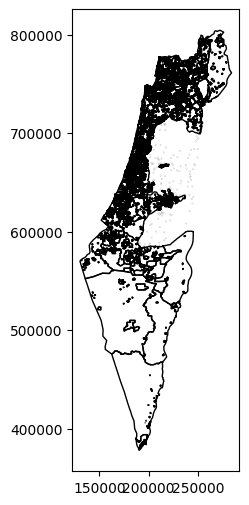
Fig. 48 Solution of exercise-08-a1: The statistical areas layer#
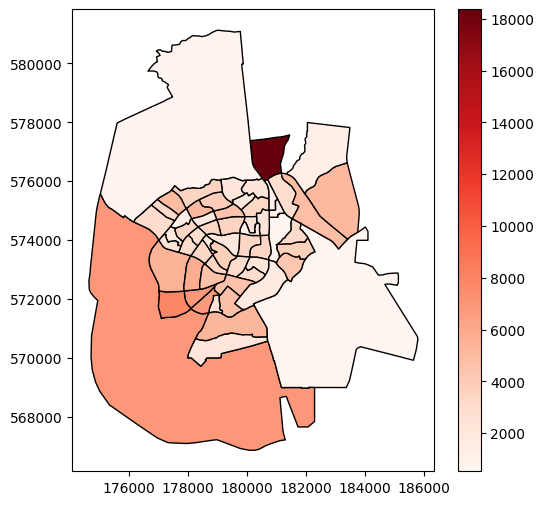
Fig. 49 Solution of exercise-08-a2: Statistical areas of Beer-Sheva, with symbology according to total population size#
Table to point layer#
Another very common workflow of creating a vector layer is creating a point layer from a table that has X and Y coordinates in two separate columns. Technically, this means that the X and Y values in each row are transformed into a 'Point' geometry. The geometries are then placed in a geometry column, so that the table becomes a vector layer.
To demonstrate, let’s import the 'stops.txt' table, which contains information about public transport stops in Israel based on GTFS data (see What is GTFS?). Note the columns 'stop_lon' and 'stop_lat', which contain the X and Y coordinates, in the WGS84 coordinate system, i.e., longitude and latitude, respectively:
stops = pd.read_csv('data/gtfs/stops.txt')
stops = stops[['stop_id', 'stop_name', 'stop_lon', 'stop_lat']]
stops
| stop_id | stop_name | stop_lon | stop_lat | |
|---|---|---|---|---|
| 0 | 1 | בי''ס בר לב/בן יהודה | 34.917554 | 32.183985 |
| 1 | 2 | הרצל/צומת בילו | 34.819541 | 31.870034 |
| 2 | 3 | הנחשול/הדייגים | 34.782828 | 31.984553 |
| 3 | 4 | משה פריד/יצחק משקה | 34.790700 | 31.888325 |
| 4 | 6 | ת. מרכזית לוד/הורדה | 34.898098 | 31.956392 |
| ... | ... | ... | ... | ... |
| 34002 | 50182 | מסוף שכונת החותרים/הורדה | 34.966691 | 32.748564 |
| 34003 | 50183 | מסוף שכונת החותרים/איסוף | 34.966844 | 32.748776 |
| 34004 | 50184 | מדבריום | 34.744373 | 31.260857 |
| 34005 | 50185 | כביש 25/מדבריום | 34.747607 | 31.263478 |
| 34006 | 50186 | כביש 25/מדבריום | 34.746768 | 31.264262 |
34007 rows × 4 columns
To transform a DataFrame with X and Y columns into a GeoDataFrame point layer, we go through two steps:
Constructing a
GeoSeriesof'Point'geometries, from twoSeriesrepresenting X and Y, usinggpd.points_from_xy. Optionally, we can specify the CRS of theGeoSeries, using thecrsparameter.Converting the
GeoSeriesto aGeoDataFrame, usinggpd.GeoDataFrame.
Let us begin with the first step—creating the GeoSeries. The X and Y columns are readily available, stops['stop_lon'], stops['stop_lat'], however specifying the crs parameter is less trivial. The CRS definition is usually not stored in the same table with the X and Y columns, since it would have to be repeated on all rows. We need to figure out which CRS the X and Y coordinates are in according to the metadata or accompanying information (such as the GTFS specification). In this particular case, the names 'stop_lon' and 'stop_lat' (where “lon”=longitude and “lat”=latitude) give a pretty good hint that the coordinates are given in WGS84, therefore we use crs=4326:
geom = gpd.points_from_xy(stops['stop_lon'], stops['stop_lat'], crs=4326)
The result is a special type of array named GeometryArray:
type(geom)
geopandas.array.GeometryArray
Though it can be used as is, we are going to convert it to a GeoSeries, which we are already familiar with, for clarity:
geom = gpd.GeoSeries(geom)
geom
0 POINT (34.91755 32.18398)
1 POINT (34.81954 31.87003)
2 POINT (34.78283 31.98455)
3 POINT (34.7907 31.88832)
4 POINT (34.8981 31.95639)
...
34002 POINT (34.96669 32.74856)
34003 POINT (34.96684 32.74878)
34004 POINT (34.74437 31.26086)
34005 POINT (34.74761 31.26348)
34006 POINT (34.74677 31.26426)
Length: 34007, dtype: geometry
Now, we can use the gpd.GeoDataFrame function to combine the DataFrame with the GeoSeries, to get a GeoDataFrame. Instead of passing a dict of columns, like we did when creating a layer manually (see Creating a GeoDataFrame), we pass a DataFrame and a GeoSeries to the data and geometry parameters, respectively:
stops = gpd.GeoDataFrame(data=stops, geometry=geom)
stops
| stop_id | stop_name | stop_lon | stop_lat | geometry | |
|---|---|---|---|---|---|
| 0 | 1 | בי''ס בר לב/בן יהודה | 34.917554 | 32.183985 | POINT (34.91755 32.18398) |
| 1 | 2 | הרצל/צומת בילו | 34.819541 | 31.870034 | POINT (34.81954 31.87003) |
| 2 | 3 | הנחשול/הדייגים | 34.782828 | 31.984553 | POINT (34.78283 31.98455) |
| 3 | 4 | משה פריד/יצחק משקה | 34.790700 | 31.888325 | POINT (34.7907 31.88832) |
| 4 | 6 | ת. מרכזית לוד/הורדה | 34.898098 | 31.956392 | POINT (34.8981 31.95639) |
| ... | ... | ... | ... | ... | ... |
| 34002 | 50182 | מסוף שכונת החותרים/הורדה | 34.966691 | 32.748564 | POINT (34.96669 32.74856) |
| 34003 | 50183 | מסוף שכונת החותרים/איסוף | 34.966844 | 32.748776 | POINT (34.96684 32.74878) |
| 34004 | 50184 | מדבריום | 34.744373 | 31.260857 | POINT (34.74437 31.26086) |
| 34005 | 50185 | כביש 25/מדבריום | 34.747607 | 31.263478 | POINT (34.74761 31.26348) |
| 34006 | 50186 | כביש 25/מדבריום | 34.746768 | 31.264262 | POINT (34.74677 31.26426) |
34007 rows × 5 columns
The 'stop_lon' and 'stop_lat' columns are no longer necessary, because the information is already in the 'geometry' columns. Therefore, they can be dropped:
stops = stops.drop(['stop_lon', 'stop_lat'], axis=1)
stops
| stop_id | stop_name | geometry | |
|---|---|---|---|
| 0 | 1 | בי''ס בר לב/בן יהודה | POINT (34.91755 32.18398) |
| 1 | 2 | הרצל/צומת בילו | POINT (34.81954 31.87003) |
| 2 | 3 | הנחשול/הדייגים | POINT (34.78283 31.98455) |
| 3 | 4 | משה פריד/יצחק משקה | POINT (34.7907 31.88832) |
| 4 | 6 | ת. מרכזית לוד/הורדה | POINT (34.8981 31.95639) |
| ... | ... | ... | ... |
| 34002 | 50182 | מסוף שכונת החותרים/הורדה | POINT (34.96669 32.74856) |
| 34003 | 50183 | מסוף שכונת החותרים/איסוף | POINT (34.96684 32.74878) |
| 34004 | 50184 | מדבריום | POINT (34.74437 31.26086) |
| 34005 | 50185 | כביש 25/מדבריום | POINT (34.74761 31.26348) |
| 34006 | 50186 | כביש 25/מדבריום | POINT (34.74677 31.26426) |
34007 rows × 3 columns
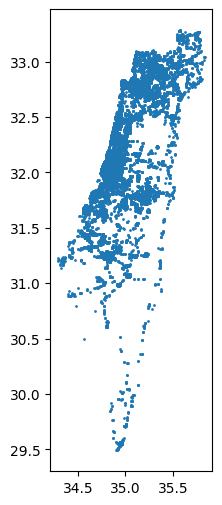
Plotting the resulting layer of public transport stations reveals the outline of Israel, with more sparse coverage in the southern part, which corresponds to population density pattern in the country. The markersize argument is used to for smaller point size to reduce overlap:
stops.plot(markersize=1);
Points to line (geopandas)#
To lines: all points combined#
A common type of geometry transformation, which we already met when learning about shapely, is the transformation of points to lines (see Points to line (shapely)). Let us see how this type of casting can be acheived when our points are in a GeoDataFrame. We begin, in this section, with transforming an entire point layer to a single continuous line. In the next section, we will learn how to transform a point layer to a layer with multiple lines by group (see To lines: by group).
To demonstrate, let’s import the 'shapes.txt' table (see What is GTFS?) from the GTFS dataset. This table contains the shapes of public transport lines. This is quite a big table, with over 7 million rows. In the table, each shape is distinguished by a unique 'shape_id', comprised of lon-lat coordinates in the 'shape_pt_lat', 'shape_pt_lon' columns:
shapes = pd.read_csv('data/gtfs/shapes.txt')
shapes
| shape_id | shape_pt_lat | shape_pt_lon | shape_pt_sequence | |
|---|---|---|---|---|
| 0 | 69895 | 32.164723 | 34.848813 | 1 |
| 1 | 69895 | 32.164738 | 34.848972 | 2 |
| 2 | 69895 | 32.164771 | 34.849177 | 3 |
| 3 | 69895 | 32.164841 | 34.849429 | 4 |
| 4 | 69895 | 32.164889 | 34.849626 | 5 |
| ... | ... | ... | ... | ... |
| 7546509 | 146260 | 32.084831 | 34.796385 | 953 |
| 7546510 | 146260 | 32.084884 | 34.796040 | 954 |
| 7546511 | 146260 | 32.084908 | 34.795895 | 955 |
| 7546512 | 146260 | 32.084039 | 34.795698 | 956 |
| 7546513 | 146260 | 32.083737 | 34.795645 | 957 |
7546514 rows × 4 columns
For the first example, we take a subset of shapes containing the shape of just one transit line. We will select the 136236 value of 'shape_id', which corresponds to bus line 24 in Beer-Sheva going from Ramot to Beer-Sheva Central Bus Station (see Solution of exercise-07-i: bus trip points). This results in a much smaller table, with 861 rows:
pnt = shapes[shapes['shape_id'] == 136236]
pnt
| shape_id | shape_pt_lat | shape_pt_lon | shape_pt_sequence | |
|---|---|---|---|---|
| 2396423 | 136236 | 31.242009 | 34.797979 | 1 |
| 2396424 | 136236 | 31.242103 | 34.797988 | 2 |
| 2396425 | 136236 | 31.242829 | 34.797982 | 3 |
| 2396426 | 136236 | 31.242980 | 34.797986 | 4 |
| 2396427 | 136236 | 31.243121 | 34.798000 | 5 |
| ... | ... | ... | ... | ... |
| 2397279 | 136236 | 31.280183 | 34.822166 | 857 |
| 2397280 | 136236 | 31.280225 | 34.822116 | 858 |
| 2397281 | 136236 | 31.280246 | 34.822038 | 859 |
| 2397282 | 136236 | 31.280250 | 34.821949 | 860 |
| 2397283 | 136236 | 31.280233 | 34.821860 | 861 |
861 rows × 4 columns
What we have is a DataFrame with x-y coordinate columns, 'shape_pt_lon' and 'shape_pt_lat'. We already know how to transform it to a GeoDataFrame with point geometries (see Table to point layer):
geom = gpd.points_from_xy(pnt['shape_pt_lon'], pnt['shape_pt_lat'], crs=4326)
pnt = gpd.GeoDataFrame(data=pnt, geometry=geom)
pnt = pnt.drop(['shape_pt_lon', 'shape_pt_lat'], axis=1)
pnt
| shape_id | shape_pt_sequence | geometry | |
|---|---|---|---|
| 2396423 | 136236 | 1 | POINT (34.79798 31.24201) |
| 2396424 | 136236 | 2 | POINT (34.79799 31.2421) |
| 2396425 | 136236 | 3 | POINT (34.79798 31.24283) |
| 2396426 | 136236 | 4 | POINT (34.79799 31.24298) |
| 2396427 | 136236 | 5 | POINT (34.798 31.24312) |
| ... | ... | ... | ... |
| 2397279 | 136236 | 857 | POINT (34.82217 31.28018) |
| 2397280 | 136236 | 858 | POINT (34.82212 31.28022) |
| 2397281 | 136236 | 859 | POINT (34.82204 31.28025) |
| 2397282 | 136236 | 860 | POINT (34.82195 31.28025) |
| 2397283 | 136236 | 861 | POINT (34.82186 31.28023) |
861 rows × 3 columns
Now, we are going use shapely to transform the point geometries into a single 'LineString' geometry. First, we create a list of shapely geometries, which requires selecting the GeoSeries (geometry) column and converting it to a list using the .to_list method (see Individual geometries):
x = pnt.geometry.to_list()
x[:5]
[<POINT (34.798 31.242)>,
<POINT (34.798 31.242)>,
<POINT (34.798 31.243)>,
<POINT (34.798 31.243)>,
<POINT (34.798 31.243)>]
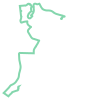
Then, we use the shapely.LineString function (see Points to line (shapely)) to convert the list of 'Point' geometries to a single 'LineString' geometry, as follows:
line = shapely.LineString(x)
line
In case we need the geometry to be contained in a GeoDataFrame, rather than a standalone shapely geometry, we can construct a GeoDataFrame using the methods we learned in the beginning of this chapter (see Creating a GeoDataFrame):
line1 = gpd.GeoDataFrame({'geometry': [line]}, crs=4326)
line1
| geometry | |
|---|---|
| 0 | LINESTRING (34.79798 31.24201, ... |
Here is an interactive map of the resulting layer line1:
line1.explore(color='red', style_kwds={'weight':8, 'opacity':0.8})
To lines: by group#
In the next example, we demonstrate how the conversion of points to lines can be generalized to produce multiple lines at once, in case when there is a grouping variable specifying the division of points to groups. For example, using the GTFS data, we may want to create a layer of type 'LineString', with all different bus routes together, rather than just one specific route (see To lines: all points combined). This example is relatively complex, with many steps to get the data into the right shape.
Our first step is to read four tables from the GTFS dataset, namely agency, routes, trips, and shapes, keeping just the columns that we need:
agency = pd.read_csv('data/gtfs/agency.txt', usecols=['agency_id', 'agency_name'])
routes = pd.read_csv('data/gtfs/routes.txt', usecols=['route_id', 'agency_id', 'route_short_name', 'route_long_name'])
trips = pd.read_csv('data/gtfs/trips.txt', usecols=['trip_id', 'route_id', 'shape_id'])
shapes = pd.read_csv('data/gtfs/shapes.txt', usecols=['shape_id', 'shape_pt_sequence', 'shape_pt_lon', 'shape_pt_lat'])
To have a more manageable layer size, we will subset just one bus operator, namely 'מטרופולין'. First, we need to figure out its agency_id:
agency = agency[agency['agency_name'] == 'מטרופולין']
agency
| agency_id | agency_name | |
|---|---|---|
| 9 | 15 | מטרופולין |
Now that we know the agency_id of 'מטרופולין', we can subset the routes table to retain only the routes by this particular operator. We also drop the 'agency_id' column which is no longer necessary. We can see there are 691 routes operated by 'מטרופולין':
routes = routes[routes['agency_id'] == agency['agency_id'].iloc[0]]
routes = routes.drop('agency_id', axis=1)
routes
| route_id | route_short_name | route_long_name | |
|---|---|---|---|
| 211 | 696 | 600 | ת. מרכזית נתניה/רציפים-נתניה<->... |
| 212 | 697 | 600 | ת.מרכזית תל אביב קומה 6/רציפים-... |
| 213 | 698 | 601 | ת. רכבת נתניה-נתניה<->ת.מרכזית ... |
| 214 | 700 | 601 | ת.מרכזית תל אביב קומה 6/רציפים-... |
| 215 | 707 | 604 | ת. מרכזית נתניה/רציפים-נתניה<->... |
| ... | ... | ... | ... |
| 7960 | 36003 | 457 | יצחק שדה/האצל-דימונה<->ירמיהו/א... |
| 8054 | 36477 | 178 | מסוף עתידים-תל אביב יפו<->המרכב... |
| 8055 | 36478 | 178 | המרכבה/הבנאי-חולון<->מסוף עתידי... |
| 8062 | 36503 | 13 | בית ברבור/דרך ההגנה-תל אביב יפו... |
| 8063 | 36504 | 13 | בי''ח וולפסון-חולון<->בית ברבור... |
691 rows × 3 columns
Next, we need to join the routes table with the shapes table, where the route coordinates are. However the routes table corresponds to the shapes table indirectly, through the trips table (Fig. 28). Therefore we first need to join trips to routes, and then shapes to the result. To make things simpler, we will remove duplicates from the trips table, assuming that all trips of a particular route follow the same shape (which they typically do), thus retaining just one representative trip per route. Here is the current state of the trips table, with numerous trips per route:
trips
| route_id | trip_id | shape_id | |
|---|---|---|---|
| 0 | 60 | 3764_081023 | 126055.0 |
| 1 | 68 | 3143332_011023 | 128020.0 |
| 2 | 68 | 3143338_011023 | 128020.0 |
| 3 | 68 | 3244955_011023 | 128020.0 |
| 4 | 68 | 3244956_011023 | 128020.0 |
| ... | ... | ... | ... |
| 398086 | 43 | 2827_081023 | 127560.0 |
| 398087 | 43 | 17254928_011023 | 127560.0 |
| 398088 | 43 | 2796_011023 | 127560.0 |
| 398089 | 43 | 2806_011023 | 127560.0 |
| 398090 | 43 | 2807_011023 | 127560.0 |
398091 rows × 3 columns
To remove duplicates from a table, we can use the .drop_duplicates method. This method accepts an argument named subset, where we specify which column(s) are considered for duplicates. In our case, we remove rows with duplicated route_id in trips, thus retaining just one route_id per trip:
trips = trips.drop_duplicates(subset='route_id')
trips
| route_id | trip_id | shape_id | |
|---|---|---|---|
| 0 | 60 | 3764_081023 | 126055.0 |
| 1 | 68 | 3143332_011023 | 128020.0 |
| 10 | 69 | 42263035_081023 | 128021.0 |
| 20 | 70 | 4667527_081023 | 133676.0 |
| 28 | 81 | 17255283_081023 | 140323.0 |
| ... | ... | ... | ... |
| 394653 | 16001 | 57730596_091023 | 135279.0 |
| 394750 | 17800 | 584950698_011023 | 120468.0 |
| 395305 | 35432 | 585244118_071023 | 139876.0 |
| 395741 | 21093 | 28981390_071023 | 139766.0 |
| 397299 | 16331 | 28394213_011023 | 142903.0 |
8188 rows × 3 columns
We can also drop the trip_id column, which is no longer necessary:
trips = trips.drop('trip_id', axis=1)
trips
| route_id | shape_id | |
|---|---|---|
| 0 | 60 | 126055.0 |
| 1 | 68 | 128020.0 |
| 10 | 69 | 128021.0 |
| 20 | 70 | 133676.0 |
| 28 | 81 | 140323.0 |
| ... | ... | ... |
| 394653 | 16001 | 135279.0 |
| 394750 | 17800 | 120468.0 |
| 395305 | 35432 | 139876.0 |
| 395741 | 21093 | 139766.0 |
| 397299 | 16331 | 142903.0 |
8188 rows × 2 columns
Now we can run both joins:
first joining
tripstoroutes, to attach the shape IDs,then
shapesto the result, to attach the lon/lat point sequences
as follows:
routes = pd.merge(routes, trips, on='route_id', how='left')
routes
| route_id | route_short_name | route_long_name | shape_id | |
|---|---|---|---|---|
| 0 | 696 | 600 | ת. מרכזית נתניה/רציפים-נתניה<->... | 138815.0 |
| 1 | 697 | 600 | ת.מרכזית תל אביב קומה 6/רציפים-... | 132223.0 |
| 2 | 698 | 601 | ת. רכבת נתניה-נתניה<->ת.מרכזית ... | 138816.0 |
| 3 | 700 | 601 | ת.מרכזית תל אביב קומה 6/רציפים-... | 145630.0 |
| 4 | 707 | 604 | ת. מרכזית נתניה/רציפים-נתניה<->... | 138656.0 |
| ... | ... | ... | ... | ... |
| 686 | 36003 | 457 | יצחק שדה/האצל-דימונה<->ירמיהו/א... | 143525.0 |
| 687 | 36477 | 178 | מסוף עתידים-תל אביב יפו<->המרכב... | 145131.0 |
| 688 | 36478 | 178 | המרכבה/הבנאי-חולון<->מסוף עתידי... | 145132.0 |
| 689 | 36503 | 13 | בית ברבור/דרך ההגנה-תל אביב יפו... | 144796.0 |
| 690 | 36504 | 13 | בי''ח וולפסון-חולון<->בית ברבור... | 144797.0 |
691 rows × 4 columns
routes = pd.merge(routes, shapes, on='shape_id', how='left')
routes
| route_id | route_short_name | route_long_name | shape_id | shape_pt_lat | shape_pt_lon | shape_pt_sequence | |
|---|---|---|---|---|---|---|---|
| 0 | 696 | 600 | ת. מרכזית נתניה/רציפים-נתניה<->... | 138815.0 | 32.326945 | 34.858709 | 1 |
| 1 | 696 | 600 | ת. מרכזית נתניה/רציפים-נתניה<->... | 138815.0 | 32.326788 | 34.859270 | 2 |
| 2 | 696 | 600 | ת. מרכזית נתניה/רציפים-נתניה<->... | 138815.0 | 32.326743 | 34.859413 | 3 |
| 3 | 696 | 600 | ת. מרכזית נתניה/רציפים-נתניה<->... | 138815.0 | 32.326359 | 34.859245 | 4 |
| 4 | 696 | 600 | ת. מרכזית נתניה/רציפים-נתניה<->... | 138815.0 | 32.326587 | 34.858540 | 5 |
| ... | ... | ... | ... | ... | ... | ... | ... |
| 670119 | 36504 | 13 | בי''ח וולפסון-חולון<->בית ברבור... | 144797.0 | 32.053639 | 34.802566 | 829 |
| 670120 | 36504 | 13 | בי''ח וולפסון-חולון<->בית ברבור... | 144797.0 | 32.053632 | 34.802569 | 830 |
| 670121 | 36504 | 13 | בי''ח וולפסון-חולון<->בית ברבור... | 144797.0 | 32.053539 | 34.802274 | 831 |
| 670122 | 36504 | 13 | בי''ח וולפסון-חולון<->בית ברבור... | 144797.0 | 32.053421 | 34.801801 | 832 |
| 670123 | 36504 | 13 | בי''ח וולפסון-חולון<->בית ברבור... | 144797.0 | 32.053396 | 34.801617 | 833 |
670124 rows × 7 columns
The resulting routes table contains, in the 'shape_pt_lon' and 'shape_pt_lat' columns, the coordinate sequence per 'route_id'. Now, we can move on to the spatial part of the conversion, where the table will be transformed to a 'LineString' layer of routes.
First, we convert the DataFrame to a GeoDataFrame of type 'Point', same as we did above for the individual line number 24 in Beer-Sheva (see To lines: all points combined):
geom = gpd.points_from_xy(routes['shape_pt_lon'], routes['shape_pt_lat'], crs=4326)
routes = gpd.GeoDataFrame(data=routes, geometry=geom)
routes = routes.drop(['shape_pt_lon', 'shape_pt_lat'], axis=1)
routes
| route_id | route_short_name | route_long_name | shape_id | shape_pt_sequence | geometry | |
|---|---|---|---|---|---|---|
| 0 | 696 | 600 | ת. מרכזית נתניה/רציפים-נתניה<->... | 138815.0 | 1 | POINT (34.85871 32.32694) |
| 1 | 696 | 600 | ת. מרכזית נתניה/רציפים-נתניה<->... | 138815.0 | 2 | POINT (34.85927 32.32679) |
| 2 | 696 | 600 | ת. מרכזית נתניה/רציפים-נתניה<->... | 138815.0 | 3 | POINT (34.85941 32.32674) |
| 3 | 696 | 600 | ת. מרכזית נתניה/רציפים-נתניה<->... | 138815.0 | 4 | POINT (34.85924 32.32636) |
| 4 | 696 | 600 | ת. מרכזית נתניה/רציפים-נתניה<->... | 138815.0 | 5 | POINT (34.85854 32.32659) |
| ... | ... | ... | ... | ... | ... | ... |
| 670119 | 36504 | 13 | בי''ח וולפסון-חולון<->בית ברבור... | 144797.0 | 829 | POINT (34.80257 32.05364) |
| 670120 | 36504 | 13 | בי''ח וולפסון-חולון<->בית ברבור... | 144797.0 | 830 | POINT (34.80257 32.05363) |
| 670121 | 36504 | 13 | בי''ח וולפסון-חולון<->בית ברבור... | 144797.0 | 831 | POINT (34.80227 32.05354) |
| 670122 | 36504 | 13 | בי''ח וולפסון-חולון<->בית ברבור... | 144797.0 | 832 | POINT (34.8018 32.05342) |
| 670123 | 36504 | 13 | בי''ח וולפסון-חולון<->בית ברבור... | 144797.0 | 833 | POINT (34.80162 32.0534) |
670124 rows × 6 columns
If we needed to convert all sequences into a single 'LineString', we could use the method shown earlier (see To lines: all points combined). However, what we need is to create a separate 'LineString' per 'route_id'. Therefore, we:
Group the layer by
'shape_id', using the.aggmethod (see Different functions (agg))Use the
'first'“function” to keep the first'route_short_name'and'route_long_name'values per route (as they are identical in each'route_id'anyway)Apply a lambda function (see Custom functions (agg)) that “summarizes” the
'Point'geometries into a'LineString'geometry
Here is the code:
routes = routes.groupby('route_id').agg({
'route_short_name': 'first',
'route_long_name': 'first',
'geometry': lambda x: shapely.LineString(x.to_list()),
}).reset_index()
routes
| route_id | route_short_name | route_long_name | geometry | |
|---|---|---|---|---|
| 0 | 696 | 600 | ת. מרכזית נתניה/רציפים-נתניה<->... | LINESTRING (34.85871 32.32694, ... |
| 1 | 697 | 600 | ת.מרכזית תל אביב קומה 6/רציפים-... | LINESTRING (34.7784 32.05604, 3... |
| 2 | 698 | 601 | ת. רכבת נתניה-נתניה<->ת.מרכזית ... | LINESTRING (34.86808 32.31997, ... |
| 3 | 700 | 601 | ת.מרכזית תל אביב קומה 6/רציפים-... | LINESTRING (34.77911 32.05585, ... |
| 4 | 707 | 604 | ת. מרכזית נתניה/רציפים-נתניה<->... | LINESTRING (34.85871 32.32694, ... |
| ... | ... | ... | ... | ... |
| 686 | 36003 | 457 | יצחק שדה/האצל-דימונה<->ירמיהו/א... | LINESTRING (35.02688 31.07337, ... |
| 687 | 36477 | 178 | מסוף עתידים-תל אביב יפו<->המרכב... | LINESTRING (34.84134 32.11417, ... |
| 688 | 36478 | 178 | המרכבה/הבנאי-חולון<->מסוף עתידי... | LINESTRING (34.8067 32.01673, 3... |
| 689 | 36503 | 13 | בית ברבור/דרך ההגנה-תל אביב יפו... | LINESTRING (34.80169 32.0534, 3... |
| 690 | 36504 | 13 | בי''ח וולפסון-חולון<->בית ברבור... | LINESTRING (34.76128 32.0366, 3... |
691 rows × 4 columns
The .groupby and .agg workflow unfortunately “loses” the spatial properties of the data structure, going back to a DataFrame:
type(routes)
pandas.DataFrame
Therefore, we need to convert the result back to a GeoDataFrame and restore the CRS information which was lost, using gpd.GeoDataFrame:
routes = gpd.GeoDataFrame(routes, crs=4326)
routes
| route_id | route_short_name | route_long_name | geometry | |
|---|---|---|---|---|
| 0 | 696 | 600 | ת. מרכזית נתניה/רציפים-נתניה<->... | LINESTRING (34.85871 32.32694, ... |
| 1 | 697 | 600 | ת.מרכזית תל אביב קומה 6/רציפים-... | LINESTRING (34.7784 32.05604, 3... |
| 2 | 698 | 601 | ת. רכבת נתניה-נתניה<->ת.מרכזית ... | LINESTRING (34.86808 32.31997, ... |
| 3 | 700 | 601 | ת.מרכזית תל אביב קומה 6/רציפים-... | LINESTRING (34.77911 32.05585, ... |
| 4 | 707 | 604 | ת. מרכזית נתניה/רציפים-נתניה<->... | LINESTRING (34.85871 32.32694, ... |
| ... | ... | ... | ... | ... |
| 686 | 36003 | 457 | יצחק שדה/האצל-דימונה<->ירמיהו/א... | LINESTRING (35.02688 31.07337, ... |
| 687 | 36477 | 178 | מסוף עתידים-תל אביב יפו<->המרכב... | LINESTRING (34.84134 32.11417, ... |
| 688 | 36478 | 178 | המרכבה/הבנאי-חולון<->מסוף עתידי... | LINESTRING (34.8067 32.01673, 3... |
| 689 | 36503 | 13 | בית ברבור/דרך ההגנה-תל אביב יפו... | LINESTRING (34.80169 32.0534, 3... |
| 690 | 36504 | 13 | בי''ח וולפסון-חולון<->בית ברבור... | LINESTRING (34.76128 32.0366, 3... |
691 rows × 4 columns
type(routes)
geopandas.geodataframe.GeoDataFrame
Here is a map of the result. This is a line layer of all 691 routes operated by 'מטרופולין', reflecting the shape of the first representative trip per route:
routes.explore(color='red', style_kwds={'weight':8, 'opacity':0.1})
Exercise 08-b
Repeat the creation of the line layer
routes, as shown above, but this time subset the operator'דן באר שבע'.Calcualte a
GeoSeriesof starting points of each route. Hint: you can either go over the'LineString'geometries and extract the first point usingshapelymethods (see LineString coordinates and shapely from type-specific functions), or go back to the point layer and subset the first point perroute_id.Plot the routes and the start points together (Fig. 50).
Note that the default plotting order of
matplotlibis lines on top of points. To have points on top of lines, specify:zorder=1when plotting the lines, andzorder=2when plotting the points.
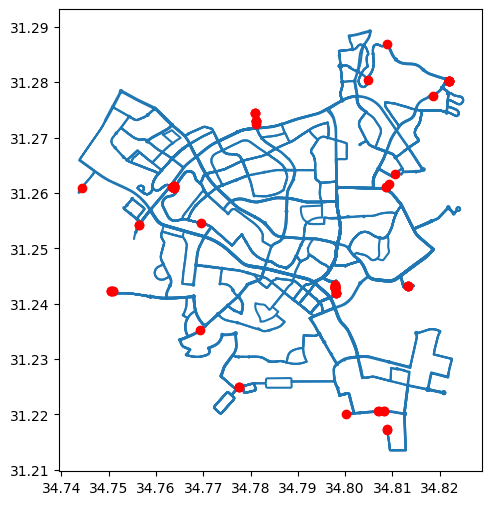
Fig. 50 Solution of exercise-08-b: Routes operated by 'דן באר שבע' and their start points#
We can also explore specific routes in more detail. For example, the following expression displays bus lines '367', '368', and '370', which travel between Beer-Sheva, and Rishon Le Zion ('367'), Ashdod ('368'), and Tel-Aviv ('370'). Note that we are using the .isin method (see Using .isin) for filtering:
routes1 = routes[routes['route_short_name'].isin(['367', '368', '370'])]
routes1
| route_id | route_short_name | route_long_name | geometry | |
|---|---|---|---|---|
| 180 | 8140 | 367 | ת. מרכזית רשל''צ/רציפים-ראשון ל... | LINESTRING (34.78558 31.96781, ... |
| 181 | 8141 | 367 | ת.מרכזית באר שבע/רציפים בינעירו... | LINESTRING (34.79679 31.24297, ... |
| 182 | 8145 | 368 | ת. מרכזית אשדוד/רציפים-אשדוד<->... | LINESTRING (34.63898 31.79091, ... |
| 183 | 8148 | 368 | ת.מרכזית באר שבע/רציפים בינעירו... | LINESTRING (34.79679 31.24297, ... |
| 190 | 8170 | 370 | ת.מרכזית תל אביב קומה 6/רציפים-... | LINESTRING (34.77911 32.05585, ... |
| 191 | 8171 | 370 | ת.מרכזית באר שבע/רציפים בינעירו... | LINESTRING (34.79679 31.24297, ... |
Typically, there are two routes for each line, one route per direction, labelled 1# and 2#, which is why we got six routes for three lines:
routes1['route_long_name'].to_list()
["ת. מרכזית רשל''צ/רציפים-ראשון לציון<->ת.מרכזית באר שבע/הורדה-באר שבע-1#",
"ת.מרכזית באר שבע/רציפים בינעירוני-באר שבע<->ת. מרכזית ראשל''צ-ראשון לציון-2#",
'ת. מרכזית אשדוד/רציפים-אשדוד<->ת.מרכזית באר שבע/הורדה-באר שבע-1#',
'ת.מרכזית באר שבע/רציפים בינעירוני-באר שבע<->ת. מרכזית אשדוד-אשדוד-2#',
'ת.מרכזית תל אביב קומה 6/רציפים-תל אביב יפו<->ת.מרכזית באר שבע/הורדה-באר שבע-1#',
'ת.מרכזית באר שבע/רציפים בינעירוני-באר שבע<->ת.מרכזית תל אביב קומה 6/הורדה-תל אביב יפו-2#']
When mapping the lines we can keep just one, since the routes of the same line in both directions mostly overlap anyway:
routes1 = routes1.drop_duplicates('route_short_name')
routes1
| route_id | route_short_name | route_long_name | geometry | |
|---|---|---|---|---|
| 180 | 8140 | 367 | ת. מרכזית רשל''צ/רציפים-ראשון ל... | LINESTRING (34.78558 31.96781, ... |
| 182 | 8145 | 368 | ת. מרכזית אשדוד/רציפים-אשדוד<->... | LINESTRING (34.63898 31.79091, ... |
| 190 | 8170 | 370 | ת.מרכזית תל אביב קומה 6/רציפים-... | LINESTRING (34.77911 32.05585, ... |
Here is an interactive map of the three lines. Here we use another option for specifying cmap, using specific color names (which is specific to .explore):
routes1.explore(
column='route_short_name',
cmap=['red', 'green', 'blue'],
style_kwds={'weight':8, 'opacity':0.8}
)
Writing GeoDataFrame to file#
A GeoDataFrame can be written to file using its .to_file method. This is useful for:
Permanent storage of the data, for future analysis or for sharing your results with other people
Examining the result in other software, such as GIS software, for validation or exploration of your results
The output format of .to_file can be inferred from the file extension, e.g., Shapefile when writing to a .shp file. For example, the following expression writes the routes line layer (see To lines: by group) into a Shapefile named routes.shp in the output directory. When exporting a Shapefile with non-English text, we sould also specify the encoding, such as encoding='utf-8':
routes.to_file('output/routes.shp', encoding='utf-8')
/tmp/ipykernel_19587/666508242.py:1: UserWarning: Column names longer than 10 characters will be truncated when saved to ESRI Shapefile.
routes.to_file('output/routes.shp', encoding='utf-8')
/home/michael/Sync/venv/m/lib/python3.12/site-packages/pyogrio/raw.py:723: RuntimeWarning: Normalized/laundered field name: 'route_short_name' to 'route_shor'
ogr_write(
/home/michael/Sync/venv/m/lib/python3.12/site-packages/pyogrio/raw.py:723: RuntimeWarning: Normalized/laundered field name: 'route_long_name' to 'route_long'
ogr_write(
Now we can permanently store the layer of bus routes, share it with a colleague, or open it in another program such as QGIS (Fig. 51).
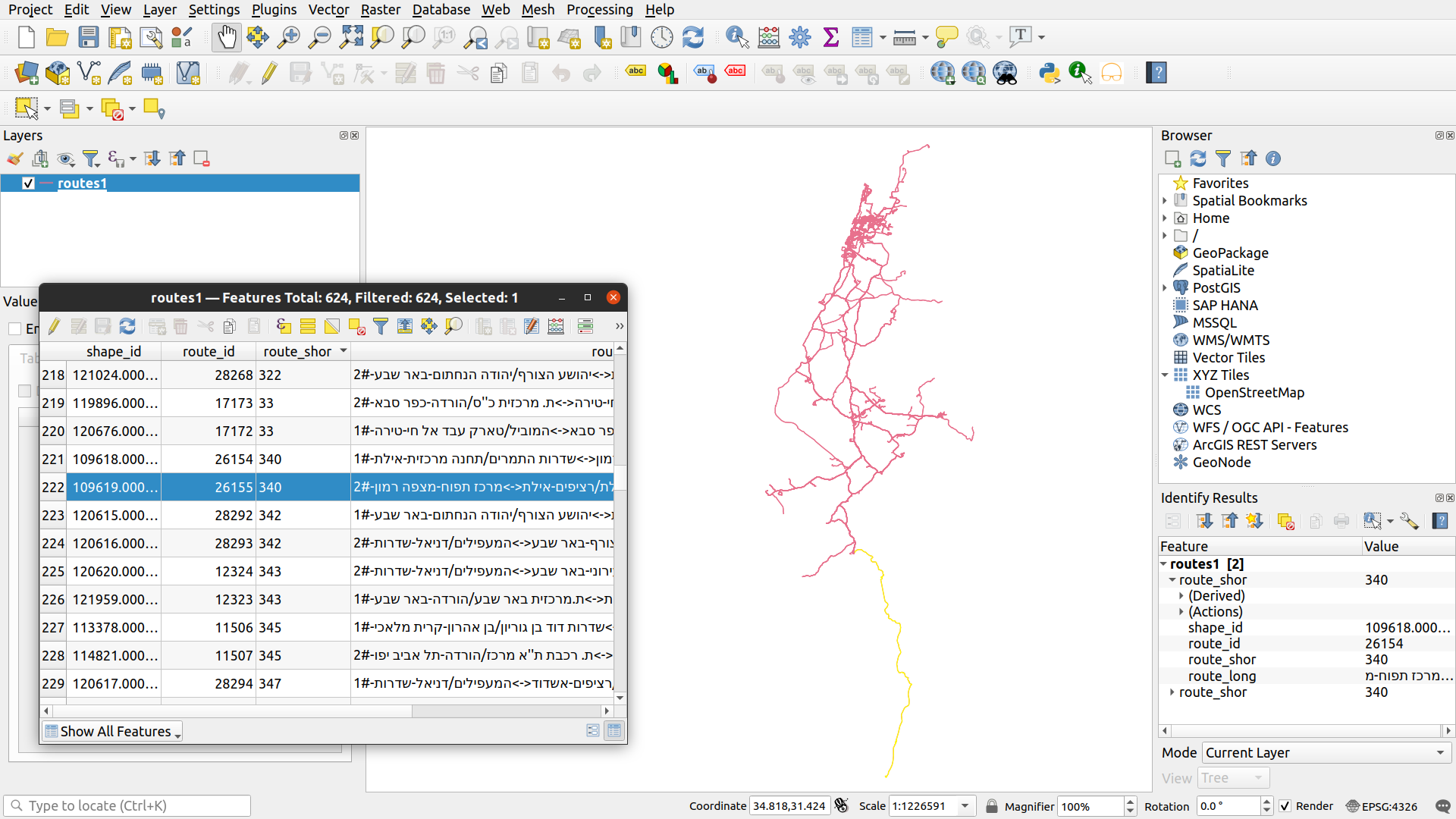
Fig. 51 The routes layer, exported to Shapefile and opened in QGIS#
We can write to GeoJSON or GeoPackage files the same way:
routes.to_file('output/routes.geojson')
routes.to_file('output/routes.gpkg')
Note that if the output file already exists—it will be overwritten!
More exercises#
Exercise 08-c
In this exercise, you need to use the statistical areas layer (
'statisticalareas_demography2019.gdb') to find out which towns have the highest, or lowest, proportions of young (0-19) residents. To do that, go through the following steps.Read the statistical areas layer (
'statisticalareas_demography2019.gdb').Subset the columns
'SHEM_YISHUV','age_0_4','age_5_9','age_10_14','age_15_19', and'Pop_Total'. Note that the result is aDataFrame, since the geometry column was not included.Replace the “No Data” values in the
'age_0_4','age_5_9','age_10_14','age_15_19', and'Pop_Total'columns with zero (as these represent zero population).Sum the
'age_0_4','age_5_9','age_10_14', and'age_15_19'columns to calculate a new column named'Pop_Total_0_19', which represents the total population in ages 0-19 per polygon.Subset only those towns with
'Pop_Total'greater than5000.Aggregate by town name (
'SHEM_YISHUV'column), while calculating the sum of the'Pop_Total_0_19'and the'Pop_Total'columns.Calculate the proportion of the “young” population, by dividing the
'Pop_Total_0_19'column by the'Pop_Total'column, and store it in a new column named'prop'.Reclassify the
'prop'values into two categories:'young'—Where the'prop'is above the average of the entire'prop'column.'old'—Where the'prop'is below the average of the entire'prop'column.
Print the five towns with the highest and lowest
'prop'values (Fig. 52).
| SHEM_YISHUV | age_0_4 | age_5_9 | age_10_14 | age_15_19 | Pop_Total | Pop_Total_0_19 | prop | type | |
|---|---|---|---|---|---|---|---|---|---|
| 149 | קריית ביאליק | 696.0 | 646.0 | 634.0 | 635.0 | 10980.0 | 2611.0 | 0.237796 | old |
| 118 | נשר | 459.0 | 491.0 | 446.0 | 403.0 | 7123.0 | 1799.0 | 0.252562 | old |
| 32 | בני עי"ש | 518.0 | 460.0 | 389.0 | 424.0 | 6978.0 | 1791.0 | 0.256664 | old |
| 164 | רמת גן | 4106.0 | 3764.0 | 3511.0 | 3077.0 | 53747.0 | 14458.0 | 0.269001 | old |
| 176 | תל אביב -יפו | 7217.0 | 6461.0 | 5473.0 | 4941.0 | 89404.0 | 24092.0 | 0.269473 | old |
| ... | ... | ... | ... | ... | ... | ... | ... | ... | ... |
| 63 | חורה | 4087.0 | 3553.0 | 3001.0 | 2799.0 | 22337.0 | 13440.0 | 0.601692 | young |
| 29 | בית שמש | 18999.0 | 17515.0 | 14383.0 | 9976.0 | 100881.0 | 60873.0 | 0.603414 | young |
| 10 | אלעד | 7271.0 | 8064.0 | 8142.0 | 6457.0 | 48764.0 | 29934.0 | 0.613854 | young |
| 30 | ביתר עילית | 9963.0 | 8915.0 | 7437.0 | 4291.0 | 46889.0 | 30606.0 | 0.652733 | young |
| 105 | מודיעין עילית | 14246.0 | 13303.0 | 9782.0 | 5517.0 | 62919.0 | 42848.0 | 0.681003 | young |
179 rows × 9 columns
Fig. 52 Solution of exercise-08-c: Towns with the highest and lowest proportions of young (0-19) residents#
Exercise 08-d
Start with the
routeslayer with all routes operated by"מטרופולין"(see To lines: by group).Calculate
delta_lonanddelta_latcolumns, with \(x_{max}-x_{min}\) and \(y_{max}-y_{min}\) per route, respectively. Hint: use the.boundsproperty (see Bounds (geopandas)).Subset the route that has maximal
delta_lonand the route that has the maximaldelta_lat, i.e., the route that has the widest and the tallest bounding box, respectively (Fig. 53).Plot the two routes using different colors (Fig. 54).
| route_id | route_short_name | route_long_name | geometry | |
|---|---|---|---|---|
| 279 | 11698 | 588 | ת. מרכזית ערד/רציפים-ערד<->מכלל... | LINESTRING (35.21177 31.25577, ... |
| 292 | 11718 | 660 | הספרייה-מצפה רמון<->ת.מרכזית תל... | LINESTRING (34.80194 30.61039, ... |
Fig. 53 Solution of exercise-08-d1: Routes by "מטרופולין" with maximal delta_lon and delta_lat (table view)#
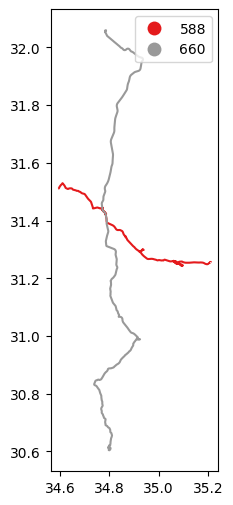
Fig. 54 Solution of exercise-08-d2: Routes by "מטרופולין" with maximal delta_lon and delta_lat (plot)#
Exercise solutions#
Exercise 08-a#
import geopandas as gpd
# Read and subset
stat = gpd.read_file('data/statisticalareas_demography2019.gdb')
stat = stat[['YISHUV_STAT11', 'SHEM_YISHUV', 'SHEM_YISHUV_ENGLISH', 'Pop_Total', 'geometry']]
# Examine CRS
stat.crs
# Feature count
stat.shape[0]
# Are there any duplicates in the 'YISHUV_STAT11' column?
stat['YISHUV_STAT11'].duplicated().any()
# Plot
stat.plot(edgecolor='black', color='none');
# Subset 'Beer-Sheva'
sel = stat['SHEM_YISHUV'] == 'באר שבע'
stat1 = stat[sel]
# Plot
stat1.plot(column='Pop_Total', edgecolor='black', cmap='Reds', legend=True);
# Feature count
stat1.shape[0]
# Sum of population
stat1['Pop_Total'].sum()
Exercise 08-b#
import pandas as pd
import geopandas as gpd
import shapely
# Read
agency = pd.read_csv('data/gtfs/agency.txt')
routes = pd.read_csv('data/gtfs/routes.txt')
trips = pd.read_csv('data/gtfs/trips.txt')
shapes = pd.read_csv('data/gtfs/shapes.txt')
# Subset
agency = agency[['agency_id', 'agency_name']]
routes = routes[['route_id', 'agency_id', 'route_short_name', 'route_long_name']]
trips = trips[['trip_id', 'route_id', 'shape_id']]
shapes = shapes[['shape_id', 'shape_pt_sequence', 'shape_pt_lon', 'shape_pt_lat']]
# Subset agency
agency = agency[agency['agency_name'] == 'דן באר שבע']
routes = routes[routes['agency_id'] == agency['agency_id'].iloc[0]]
routes = routes.drop('agency_id', axis=1)
# Drop duplicate trips
trips = trips.drop_duplicates(subset='route_id')
trips = trips.drop('trip_id', axis=1)
# Join routes with shapes
routes = pd.merge(routes, trips, on='route_id', how='left')
routes = pd.merge(routes, shapes, on='shape_id', how='left')
# To points
geom = gpd.points_from_xy(routes['shape_pt_lon'], routes['shape_pt_lat'], crs=4326)
routes = gpd.GeoDataFrame(data=routes, geometry=geom)
routes = routes.drop(['shape_pt_lon', 'shape_pt_lat'], axis=1)
# To lines
routes = routes.groupby('route_id').agg({
'route_short_name': 'first',
'route_long_name': 'first',
'geometry': lambda x: shapely.LineString(x.to_list()),
}).reset_index()
routes = gpd.GeoDataFrame(routes, crs=4326)
# Calculate start points
pnt = [shapely.Point(line.coords[0]) for line in routes['geometry'].to_list()]
pnt = gpd.GeoSeries(pnt, crs=4326)
# Plot
base = routes.plot(zorder=1)
pnt.plot(ax=base, color='red', zorder=2);
Exercise 08-c#
import geopandas as gpd
# Read
stat = gpd.read_file('data/statisticalareas_demography2019.gdb')
# Subset columns
sel = ['SHEM_YISHUV', 'age_0_4', 'age_5_9', 'age_10_14', 'age_15_19', 'Pop_Total']
stat = stat[sel]
# Replace 'No Data' with zero
sel = ['age_0_4', 'age_5_9', 'age_10_14', 'age_15_19', 'Pop_Total']
stat[sel] = stat[sel].fillna(0)
# Subset towns with total population >5000
sel = stat['Pop_Total'] > 5000
stat = stat[sel].copy()
# Calculate total population in ages 0-19
stat['Pop_Total_0_19'] = stat['age_0_4'] + stat['age_5_9'] + stat['age_10_14'] + stat['age_15_19']
# Aggregate
stat = stat.groupby('SHEM_YISHUV').sum().reset_index()
stat
# Calculate ratio
stat['prop'] = stat['Pop_Total_0_19'] / stat['Pop_Total']
stat
# Classify and sort
stat['type'] = 'old'
sel = stat['prop'] >= stat['prop'].mean()
stat.loc[sel, 'type'] = 'young'
stat = stat.sort_values(by='prop')
stat
Exercise 08-d#
import pandas as pd
import geopandas as gpd
import shapely
# Read
agency = pd.read_csv('data/gtfs/agency.txt')
routes = pd.read_csv('data/gtfs/routes.txt')
trips = pd.read_csv('data/gtfs/trips.txt')
shapes = pd.read_csv('data/gtfs/shapes.txt')
# Subset
agency = agency[['agency_id', 'agency_name']]
routes = routes[['route_id', 'agency_id', 'route_short_name', 'route_long_name']]
trips = trips[['trip_id', 'route_id', 'shape_id']]
shapes = shapes[['shape_id', 'shape_pt_sequence', 'shape_pt_lon', 'shape_pt_lat']]
# Subset agency
agency = agency[agency['agency_name'] == 'מטרופולין']
routes = routes[routes['agency_id'] == agency['agency_id'].iloc[0]]
routes = routes.drop('agency_id', axis=1)
# Drop duplicate trips
trips = trips.drop_duplicates(subset='route_id')
trips = trips.drop('trip_id', axis=1)
# Join routes with shapes
routes = pd.merge(routes, trips, on='route_id', how='left')
routes = pd.merge(routes, shapes, on='shape_id', how='left')
# To points
geom = gpd.points_from_xy(routes['shape_pt_lon'], routes['shape_pt_lat'], crs=4326)
routes = gpd.GeoDataFrame(data=routes, geometry=geom)
routes = routes.drop(['shape_pt_lon', 'shape_pt_lat'], axis=1)
# To lines
routes = routes.groupby('route_id').agg({
'route_short_name': 'first',
'route_long_name': 'first',
'geometry': lambda x: shapely.LineString(x.to_list()),
}).reset_index()
routes = gpd.GeoDataFrame(routes, crs=4326)
# Calculate 'delta_lon' and 'delta_lat'
b = routes.bounds
delta_lon = b['maxx'] - b['minx']
delta_lat = b['maxy'] - b['miny']
# Subset maximum 'delta_lon' and 'delta_lat'
routes1 = routes.iloc[[delta_lon.idxmax(), delta_lat.idxmax()], :]
routes1
routes1.plot(column='route_short_name', legend=True, cmap='Set1');